Copy or Export this Code to VBA
Use these verified developer utilities to run this lesson directly inside your Microsoft Excel Visual Basic Editor.
Interrupt a Macro
You can interrupt a macro in Excel at any time by pressing Esc or Ctrl + Break. Place a command button on your worksheet and add the following code lines:
Dim x As Long
x = 5

 Do While x > 2
    x = x + 1
Loop
Click the command button on the sheet. This macro never stops because the part after ‘Do While’ will always be true (x will always be higher than 2). To halt this infinite loop, press Esc or Ctrl + Break. The following dialog box will appear:
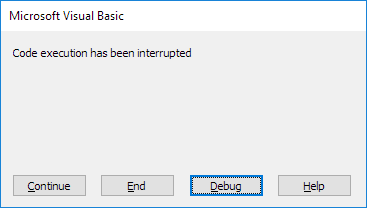
Click End to end the macro, click Debug to take a look at the macro in the Visual Basic Editor. Add the following code line at the start of your code if you don’t want users of your program to be able to interrupt your macro (not recommended).
Application.EnableCancelKey = xlDisabledAlthough, reset automatically to xlInterrupt at the end of your macro, it’s good practice (when using the previous code line) to end your macro with the following code line:
Application.EnableCancelKey = xlInterruptIf Excel freezes and you cannot interrupt your macro anymore, press Ctrl + Alt + Delete and close Excel.
Stuck on a step? Ask a question and the AI answers using this article.