Copy or Export this Code to VBA
Use these verified developer utilities to run this lesson directly inside your Microsoft Excel Visual Basic Editor.

Volatile Functions
By default, UDF’s (User Defined Functions) in Excel VBA are not volatile. They are only recalculated when any of the function’s arguments change. A volatile function will be recalculated whenever calculation occurs in any cells on the worksheet. Let’s take a look at an easy example to explain this a bit more.
1. Open the Visual Basic Editor and click Insert, Module.
Create a function called MYFUNCTION which returns the sum of the selected cell and the cell below this cell.
2. Add the following code lines:
Function MYFUNCTION(cell As Range)

MYFUNCTION = cell.Value + cell.Offset(1, 0).Value

End Function
3. Now you can use this function, just like any other Excel function.
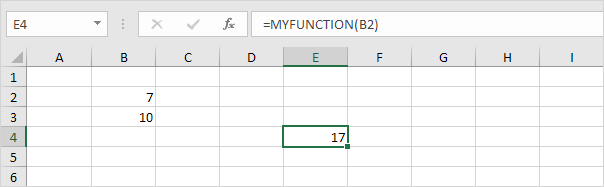
4. This is a non-volatile function. Non-volatile functions are only recalculated when any of the function’s arguments change. Change the value of cell B2 to 8.
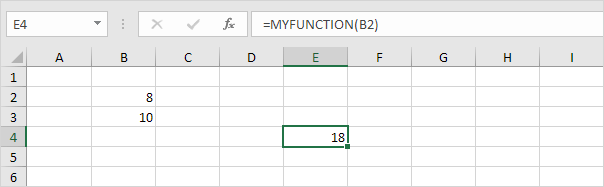
5. Now change the value of cell B3 to 11.
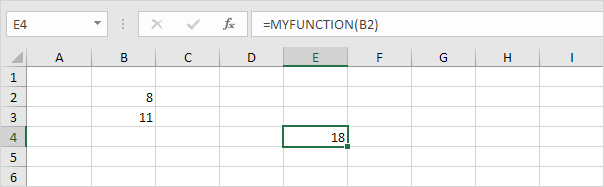
The non-volatile function is not recalculated when any other cell on the sheet changes.
6. Update the function as follows to make the function volatile:
Function MYFUNCTION(cell As Range)

Application.Volatile
MYFUNCTION = cell.Value + cell.Offset(1, 0).Value

End Function
7. Change the value of cell B3 to 12.
Result:
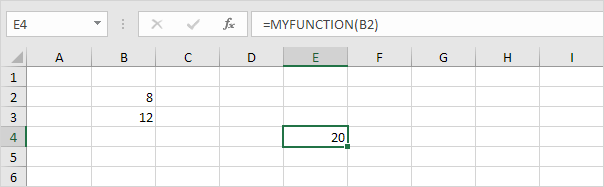
You need to enter the function again to make it volatile or refresh it by placing your cursor in the formula bar and pressing enter.
Stuck on a step? Ask a question and the AI answers using this article.