Copy or Export this Code to VBA
Use these verified developer utilities to run this lesson directly inside your Microsoft Excel Visual Basic Editor.
Loop through Defined Range
Below we will look at a program that loops through a defined range. For example, when we want to square the numbers in Range(“A1:A3”). Did you know you can also loop through a dynamic range?
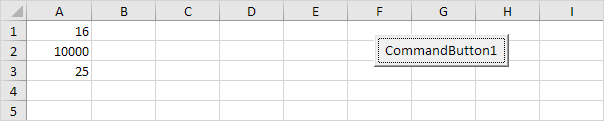
Situation:
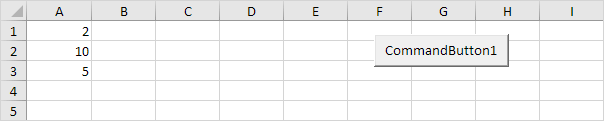
Place a command button on your worksheet and add the following code lines:
We will declare two Range objects. We call the Range objects rng and cell.
Dim rng As Range, cell As RangeWe will initialise the Range object rng with Range(“A1:A3”).
Set rng = Range("A1:A3")Add the For Each Next loop.
For Each cell In rngNext cell
rng and cell are randomly chosen here, you can use any names. Remember to refer to these names in the rest of your code.
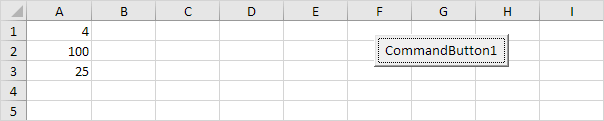
Next, we will square each cell in this range. To achieve this, add the following code line to the loop:
cell.Value = cell.Value * cell.ValueResult when you click the command button on the sheet:
If you want to check each cell in a randomly selected range, simply replace:
Set rng = Range("A1:A3")with:
Set rng = Selection6. Now, for example select Range(“A1:A2”).
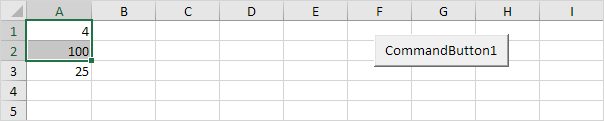
Result when you click the command button on the sheet:
Stuck on a step? Ask a question and the AI answers using this article.