Copy or Export this Code to VBA
Use these verified developer utilities to run this lesson directly inside your Microsoft Excel Visual Basic Editor.
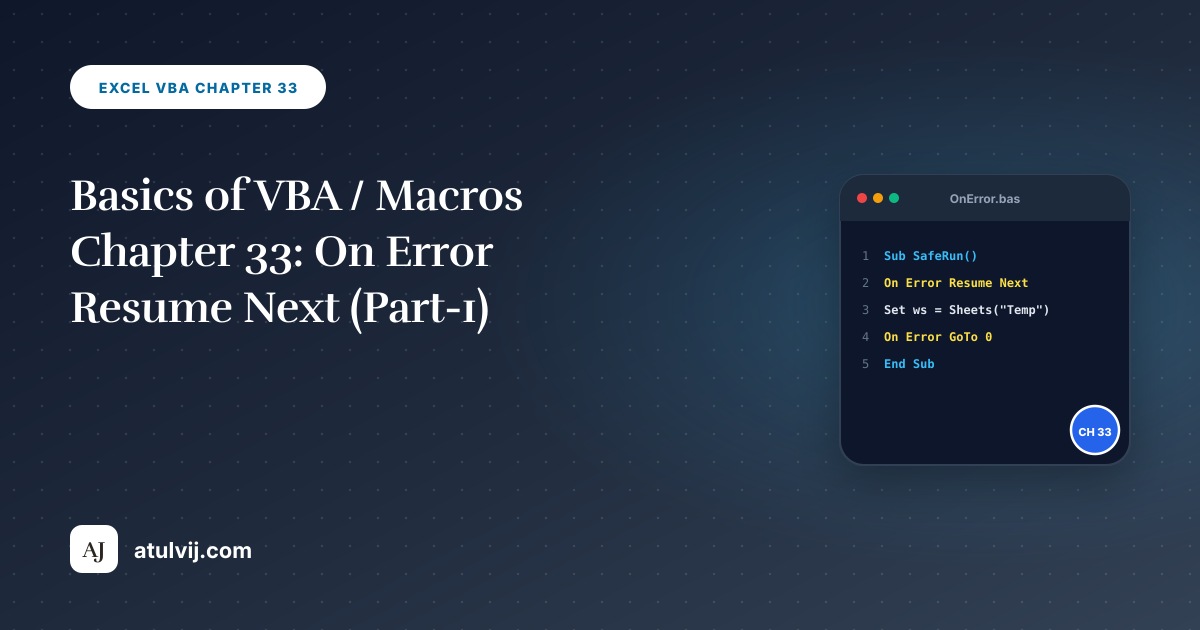
Variable/Property Not Defined Correctly
This chapter teaches you how to deal with macro errors in Excel. Let’s create some errors. Place a command button on your worksheet and add the following code lines:
x = 2
Range("A1").Valu = x
1. Click the command button on the sheet.
Result:
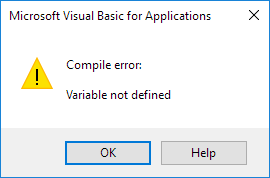
2. Click OK.
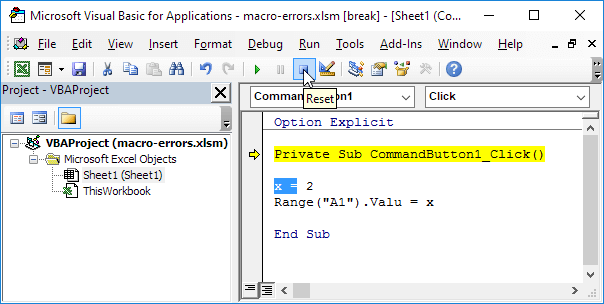
The variable x is not defined. Because we are using the Option Explicit statement at the start of our code, we have to declare all our variables. Excel VBA has coloured the x blue to indicate the error.
3. In the Visual Basic Editor, click Reset to stop the debugger.
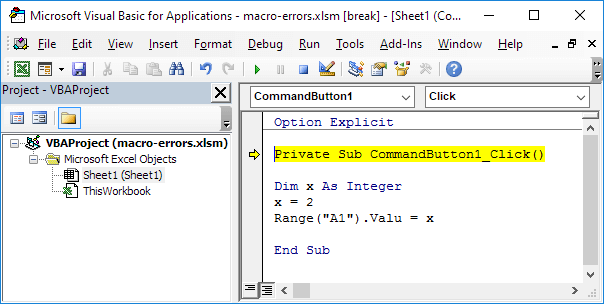
4. Correct the error by adding the following code line at the start of the code.
Dim x As IntegerYou may have heard of the technique called debugging before. With this technique you can step through your code.
5. In the Visual Basic Editor, place your cursor before Private and press F8.
The first line turns yellow.
6. Press F8 three more times.
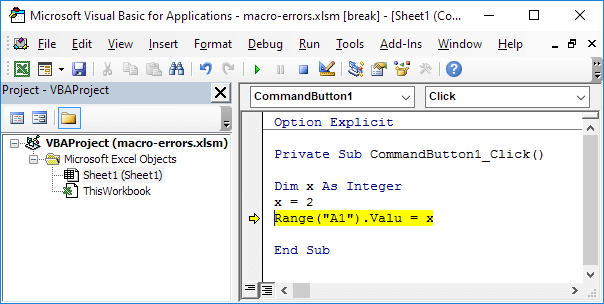
The following error appears.
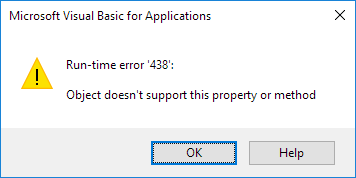
The Range object has a property called Value. Value isn’t spelled correctly here. Debugging is a great way to not only find errors, but also understand code better.
Stuck on a step? Ask a question and the AI answers using this article.