With VBA you can automate tasks in Excel by writing so called macros. We will learn how to create a simple macro which will be executed after clicking on a command button.
First step will be to turn on the Developer tab. To turn on the Developer tab, execute the following steps.
1. Right click anywhere on the ribbon, and then click Customize the Ribbon.
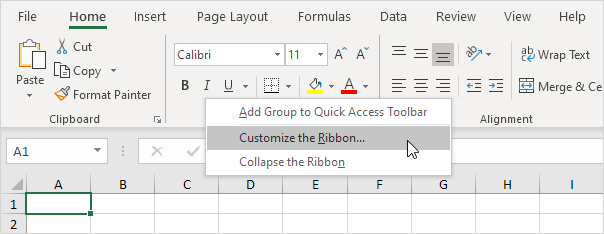
2. Under Customize the Ribbon, on the right side of the dialog box, select Main tabs (if necessary).
3. Check the Developer check box.
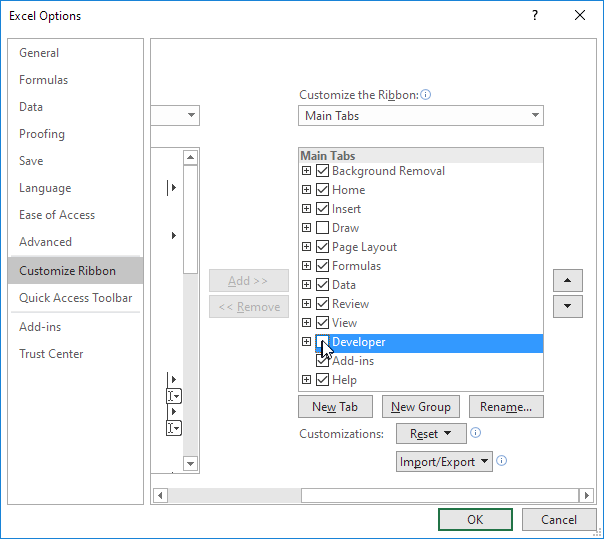
4. Click OK.
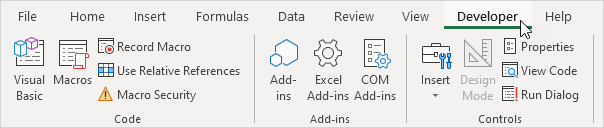
5. You can find the Developer tab next to the View tab.
Second step will be Command Button. To add command button, execute the following steps.
To place a command button on your worksheet, execute the following steps.
1. On the Developer tab, click Insert.
2. In the ActiveX Controls group, click Command Button.
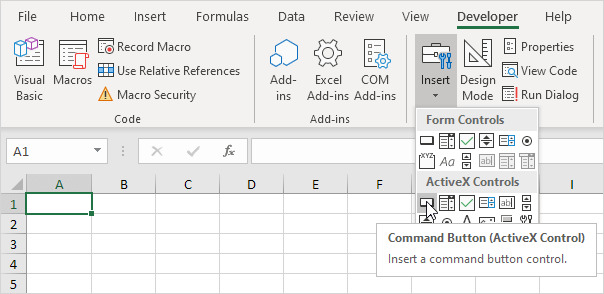
3. Drag a command button on your worksheet.
Third step will be Assigning Macro. To assign macro, execute the following steps.
1. Right click CommandButton1 (make sure Design Mode is selected).
2. Click View Code.
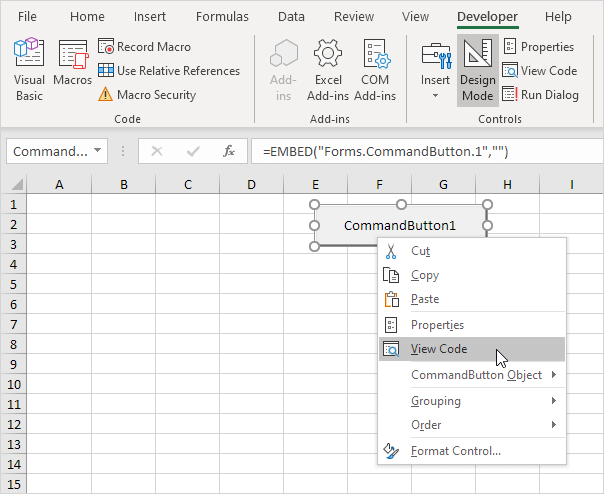
The Visual Basic Editor appears.
3. Place your cursor between Private Sub CommandButton1_Click() and End Sub.
4. Add the code line shown below.
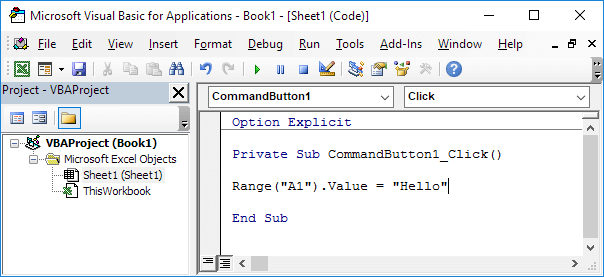
Note: the window on the left with the names Sheet1, Sheet2 and Sheet3 is called the Project Explorer. If the Project Explorer is not visible, click View, Project Explorer. To add the Code window for the first sheet, click Sheet1 (Sheet1).
5. Close the Visual Basic Editor.
6. Click the command button on the sheet (make sure Design Mode is deselected).
Result:
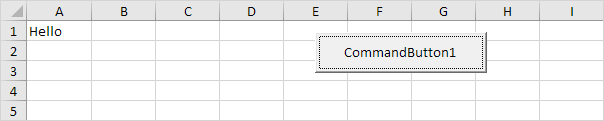
So we just created a macro in Excel! It will Type Hello in Cell A1.
We will start with how to create macro and select ranges in excel. We will do formatting and copy/paste in next chapter.