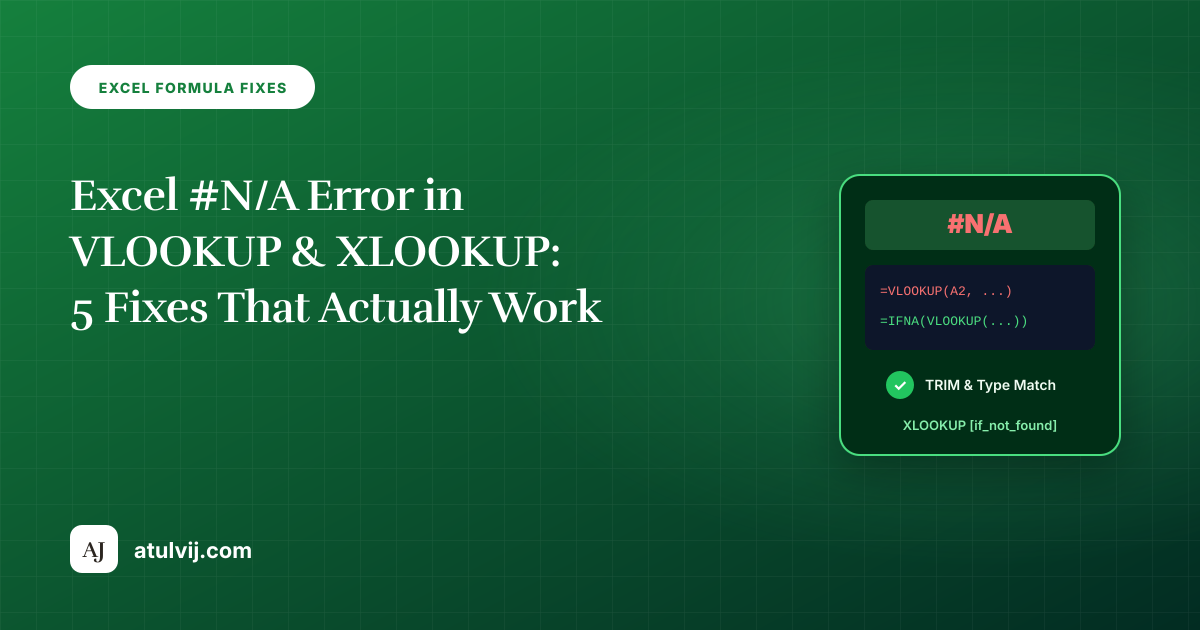
The #N/A (‘Value Not Available’) error in Microsoft Excel signals that a lookup function—such as VLOOKUP, XLOOKUP, HLOOKUP, or MATCH—searched the lookup table or array and failed to find an exact matching key. Understanding why #N/A occurs and handling it gracefully is an essential skill for accurate financial modeling and data reconciliations.
In this article
The 5 Most Common Causes of #N/A Errors
| Root Cause | Why It Fails | Exact Solution |
|---|---|---|
| Hidden Trailing Spaces | "1001 " does not match "1001". | Wrap key or array in TRIM(): =XLOOKUP(TRIM(A2), TRIM(Data!A:A), Data!B:B) |
| Text vs Number Mismatch | Numbers stored as text fail to match numeric values. | Multiply text by 1: =VLOOKUP(A2*1, Table, 2, FALSE) or convert column format. |
| Approximate Match Default | Missing 4th parameter in VLOOKUP defaults to TRUE. | Always explicitly set the 4th argument to FALSE or 0 for exact match. |
| Lookup Key Out of Left Bounds | VLOOKUP can only look to the right of the lookup column. | Switch to XLOOKUP or INDEX/MATCH to look leftward. |
| Legitimate Missing Value | The queried record truly does not exist in master data. | Use IFNA() or the built-in [if_not_found] argument in XLOOKUP. |
Graceful Error Handling: IFNA vs IFERROR
❌ RISKY (Hides syntax errors, typos, and broken formulas):
=IFERROR(VLOOKUP(A2, Products!A:C, 3, FALSE), "Not Found")

✅ RECOMMENDED (Catches only missing lookup keys, alerts on syntax bugs):
=IFNA(VLOOKUP(A2, Products!A:C, 3, FALSE), "Item Not Found")

⭐ BEST PRACTICE (Native XLOOKUP without wrapping functions):
=XLOOKUP(A2, Products!A:A, Products!C:C, "Item Not Found", 0)
Test formula combinations in our free online Interactive Formula Lab or sharpen your formula skills with the Keyboard Shortcut Trainer.
Advertisement
✨ Ask AI about this article
Stuck on a step? Ask a question and the AI answers using this article.
Free · AI can be wrong