Delete Blank Cells
Below we will look at a program in Excel VBA that deletes blank cells.
In this article
Situation:
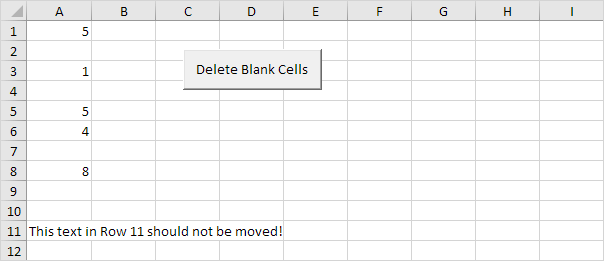
We will declare two variables of type Integer. One named counter and one named i. We initialise the variable counter with value 0.
Dim counter As Integer, i As Integer
counter = 0
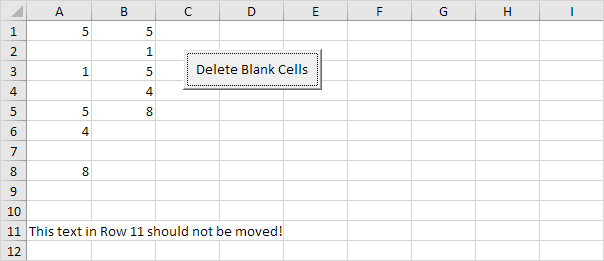
Next, we will check for each cell whether it is empty or not (<> means not equal to). We are using a loop for this. If not empty, we write the value to column B. The counter holds track of the number of cells that have been copied to column B. Each time we copy a value to column B, we increment counter by 1. This piece of the program looks as follows:
For i = 1 To 10
If Cells(i, 1).Value <> “” Then
Cells(counter + 1, 2).Value = Cells(i, 1).Value
counter = counter + 1
End If
Next i
Result so far:
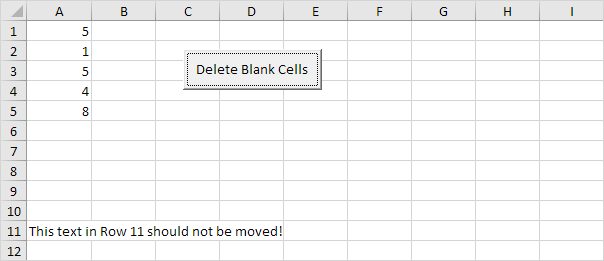
It will empty Range(“A1:A10”), copy the values of column B to column A, and empty Range(“B1:B10”).
Range(“A1:A10”).Value = “”
Range(“A1:A10”).Value = Range(“B1:B10”).Value
Range(“B1:B10”) = “”
Result:
Practical VBA workshop
Goal: remove genuinely blank records safely without skipping rows or deleting formula results unexpectedly.
An imported list contains empty rows between valid records. The cleanup must preserve the header, formulas and an audit copy.
What you will build
- A complete procedure that works without Select or Activate.
- Test data and expected behaviour you can verify before using real files.
- Error cases and production checks that prevent silent damage.
Complete VBA example
Option Explicit
Public Sub DeleteBlankDataRows()
    Dim ws As Worksheet, lastRow As Long, r As Long
    Set ws = ThisWorkbook.Worksheets("Import")
    If MsgBox("Delete completely blank data rows?", vbYesNo + vbQuestion) <> vbYes Then Exit Sub
    lastRow = ws.Cells.Find(What:="*", SearchOrder:=xlByRows, SearchDirection:=xlPrevious).Row
    Application.ScreenUpdating = False
    For r = lastRow To 2 Step -1
        If Application.CountA(ws.Rows(r)) = 0 Then ws.Rows(r).Delete
    Next r
    Application.ScreenUpdating = True
End Sub
How the solution works
- Delete from bottom to top; after a deletion, rows above retain their original indexes and no blank row is skipped.
- CountA treats formulas returning an empty string as nonblank. Decide whether that is correct for the business rule.
- Find with SearchDirection xlPrevious is more reliable than End(xlUp) when several columns may contain data.
Run it step by step
- Download and unzip the practice pack below. Open the matching CSV or copy it into a new macro-enabled workbook.
- Press Alt + F11, choose File → Import File, and import this chapter’s
.basmodule. - Rename the sample worksheet to the name used in the code, or change the worksheet name in one clearly marked line.
- Run the procedure with F5. Compare the result with the expected values and boundary cases in the CSV.
- Undo is not available after a macro changes a workbook. Test on a copy, save only after checking totals, and keep the original source file.
Common mistakes
- Deleting while looping downward skips the row that moves into the deleted row’s position.
- SpecialCells(xlCellTypeBlanks) can select individual blank cells rather than whole blank records.
- Turning off ScreenUpdating or events without an error-cleanup block can leave Excel in a confusing state if the macro fails.
Make it production-ready
Add Option Explicit, qualify every workbook and worksheet, validate the last row and input types, and use a single cleanup section to restore ScreenUpdating, EnableEvents and calculation settings after an error. Avoid hard-coded regulatory rates or colour-only business rules. Record the source, effective date and assumptions in a visible Notes sheet.
Practice challenge
Create a backup worksheet before deletion, log each removed row number, and add an error handler that always restores Application settings.
Test normal data, blanks, text in numeric columns, duplicate values and the exact threshold boundaries. A useful macro should fail clearly rather than produce a plausible but wrong answer.
Download the practice pack
Download VBA Chapters 13–23 practice pack (.zip)
The pack contains an importable VBA module and UTF-8 CSV test data for every chapter. Review code before enabling macros.
Test formulas dynamically in our web formula laboratory or download the companion Excel workbook.
Stuck on a step? Ask a question and the AI answers using this article.