Tax Rates
Below we will look at a program in VBA that calculates the tax on an income. The following tax rates apply to individuals who are residents of Australia.
In this article
| Taxable income | Tax on this income |
|---|---|
| 0 – $6,000 | Nil |
| $6,001 – $35,000 | 15c for each $1 over $6,000 |
| $35,001 – $80,000 | $4,350 plus 30c for each $1 over $35,000 |
| $80,001 – $180,000 | $17,850 plus 38c for each $1 over $80,000 |
| $180,001 and over | $55,850 plus 45c for each $1 over $180,000 |
Situation:
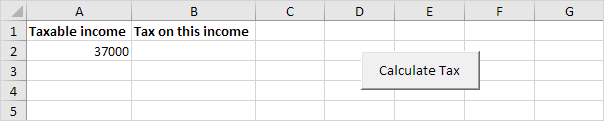
1. We declare two double variables. One double variable we call income, and one double variable we call tax.
Dim income As Double
Dim tax As Double
2. Initialise the variable income with the value of cell A2 and round it.
income = Round(Range(“A2”).Value)
3. We place the rounded value into cell A2 again.
Range(“A2”).Value = income
4. We use the Select Case statement to calculate the tax on an income. Excel VBA uses income to test each subsequent Case statement to see if the code under the Case statement should be executed.
Select Case income
Case Is >= 180001
tax = 55850 + 0.45 * (income – 180000)
Case Is >= 80001
tax = 17850 + 0.38 * (income – 80000)
Case Is >= 35001
tax = 4350 + 0.3 * (income – 35000)
Case Is >= 6001
tax = 0.15 * (income – 6000)
Case Else
tax = 0
End Select
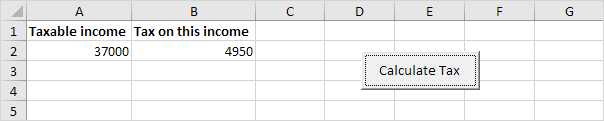
If income is 37000, tax equals 4350 + 0.3 * (37000-35000) = 4350 + 600 = $4950
5. We write the value of the variable tax to cell B2.
Range(“B2”).Value = tax
6. Place this code in a command button and test it.
Result:
Practical VBA workshop
Goal: use ordered Case Is ranges for banded calculations without presenting illustrative rates as current tax advice.
A training model calculates a fee from sample bands. The structure is reusable for commissions, rebates and service charges; the numbers are deliberately illustrative.
What you will build
- A complete procedure that works without Select or Activate.
- Test data and expected behaviour you can verify before using real files.
- Error cases and production checks that prevent silent damage.
Complete VBA example
Option Explicit
Public Function IllustrativeBandFee(ByVal amount As Double) As Double
    Select Case amount
        Case Is < 0
            Err.Raise 5, , "Amount cannot be negative"
        Case Is <= 10000
            IllustrativeBandFee = 0
        Case Is <= 25000
            IllustrativeBandFee = (amount - 10000) * 0.1
        Case Is <= 50000
            IllustrativeBandFee = 1500 + (amount - 25000) * 0.2
        Case Else
            IllustrativeBandFee = 6500 + (amount - 50000) * 0.3
    End Select
End Function
How the solution works
- Test thresholds in ascending order because the first matching Case is used.
- Separate the fixed amount from the marginal amount so each band connects continuously to the previous band.
- Keep real statutory rates in a dated table rather than hard-coding them; laws and effective dates change.
Run it step by step
- Download and unzip the practice pack below. Open the matching CSV or copy it into a new macro-enabled workbook.
- Press Alt + F11, choose File → Import File, and import this chapter’s
.basmodule. - Rename the sample worksheet to the name used in the code, or change the worksheet name in one clearly marked line.
- Run the procedure with F5. Compare the result with the expected values and boundary cases in the CSV.
- Undo is not available after a macro changes a workbook. Test on a copy, save only after checking totals, and keep the original source file.
Common mistakes
- Treating an old example rate table as current law can produce a materially wrong result.
- Using < on one boundary and <= on another can create gaps or double treatment.
- Rounding each intermediate band introduces drift; round the final result according to the documented policy.
Make it production-ready
Add Option Explicit, qualify every workbook and worksheet, validate the last row and input types, and use a single cleanup section to restore ScreenUpdating, EnableEvents and calculation settings after an error. Avoid hard-coded regulatory rates or colour-only business rules. Record the source, effective date and assumptions in a visible Notes sheet.
Practice challenge
Move the thresholds and rates into a worksheet table and write a lookup-based version that can be updated without editing VBA.
Test normal data, blanks, text in numeric columns, duplicate values and the exact threshold boundaries. A useful macro should fail clearly rather than produce a plausible but wrong answer.
Download the practice pack
Download VBA Chapters 13–23 practice pack (.zip)
The pack contains an importable VBA module and UTF-8 CSV test data for every chapter. Review code before enabling macros.
Test formulas dynamically in our web formula laboratory or download the companion Excel workbook.
Stuck on a step? Ask a question and the AI answers using this article.