
Sum by Colour
Below we will look at a program in Excel VBA that sums numbers by colour.
In this article
Situation:
You have lend money to twelve people. Some people have given it back (in black) and some still owe you money (red). You want to know how much money you still receive.
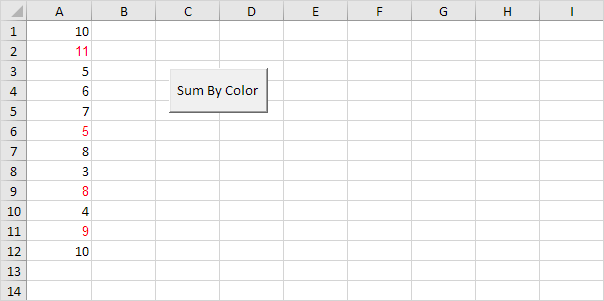
We will declare two variables of type Integer. One named toReceive and one named i. We initialise the variable toReceive with value 0.
Dim toReceive As Integer, i As Integer
toReceive = 0
Second, we start a For Next loop.
For i = 1 To 12
We now check each number and only if the color of the number is red we add the number to toReceive.
If Cells(i, 1).Font.Color = vbRed Then
toReceive = toReceive + Cells(i, 1).Value
End If
Don’t forget to close the loop.
Next i
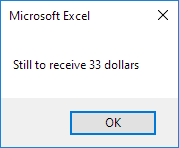
It will display the money still to receive. We use the & operator to concatenate (join) two strings. Although toReceive is not a string it works here.
MsgBox “Still to receive ” & toReceive & ” dollars”
Place your macro in a command button and test it.
Result:
Practical VBA workshop
Goal: sum values by displayed colour while understanding why colour is a weak data field.
A legacy sheet uses red font to indicate unpaid amounts. The macro calculates the total but also shows how to migrate to an explicit Status column.
What you will build
- A complete procedure that works without Select or Activate.
- Test data and expected behaviour you can verify before using real files.
- Error cases and production checks that prevent silent damage.
Complete VBA example
Option Explicit
Public Function SumByFontColour(ByVal values As Range, ByVal sample As Range) As Double
    Dim cell As Range, total As Double
    For Each cell In values.Cells
        If cell.Font.Color = sample.Font.Color And IsNumeric(cell.Value2) Then
            total = total + CDbl(cell.Value2)
        End If
    Next cell
    SumByFontColour = total
End Function

Public Sub RecalculateColourFunctions()
    Application.CalculateFull
End Sub
How the solution works
- Excel does not treat formatting changes as value changes, so a colour-only edit may not recalculate the UDF.
- Font.Color and Interior.Color are different properties; choose the one that matches the workbook’s rule.
- For durable models, store Paid/Unpaid in a status column and use SUMIFS. Colour should communicate the status, not be the only record of it.
Run it step by step
- Download and unzip the practice pack below. Open the matching CSV or copy it into a new macro-enabled workbook.
- Press Alt + F11, choose File → Import File, and import this chapter’s
.basmodule. - Rename the sample worksheet to the name used in the code, or change the worksheet name in one clearly marked line.
- Run the procedure with F5. Compare the result with the expected values and boundary cases in the CSV.
- Undo is not available after a macro changes a workbook. Test on a copy, save only after checking totals, and keep the original source file.
Common mistakes
- Conditional-format colours are not always returned through the basic Font or Interior property; DisplayFormat has restrictions in worksheet UDFs.
- Using a volatile UDF across thousands of cells can slow calculation.
- Colour meanings are inaccessible and can be lost when data is copied to CSV.
Make it production-ready
Add Option Explicit, qualify every workbook and worksheet, validate the last row and input types, and use a single cleanup section to restore ScreenUpdating, EnableEvents and calculation settings after an error. Avoid hard-coded regulatory rates or colour-only business rules. Record the source, effective date and assumptions in a visible Notes sheet.
Practice challenge
Add a Status column, reproduce the total with SUMIFS, and compare it with the colour-based result before retiring the legacy rule.
Test normal data, blanks, text in numeric columns, duplicate values and the exact threshold boundaries. A useful macro should fail clearly rather than produce a plausible but wrong answer.
Download the practice pack
Download VBA Chapters 13–23 practice pack (.zip)
The pack contains an importable VBA module and UTF-8 CSV test data for every chapter. Review code before enabling macros.
Test formulas dynamically in our web formula laboratory or download the companion Excel workbook.
Stuck on a step? Ask a question and the AI answers using this article.