Range Object
The Range object which is the representation of a cell or cells on your worksheet. It is the most important object of Excel VBA. Here we will give you an overview of the properties and methods of the Range object. Properties are something which an object has (they describe the object), while methods do something (they perform an action with an object).
Range Examples :
Range(“B3”).Value = 2
Result:
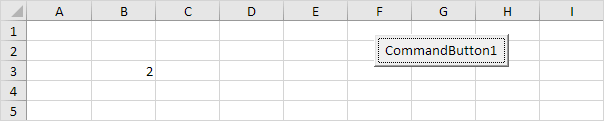
Code:
Range(“A1:A4”).Value = 5
Result:
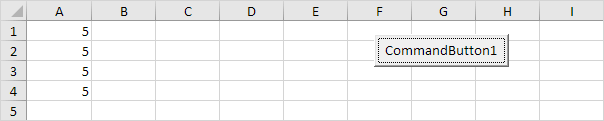
Code:
Range(“A1:A2,B3:C4”).Value = 10
Result:
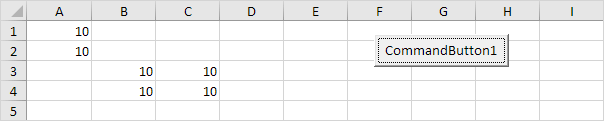
Refer to a named range in your Excel VBA code, use a code line like :
Range(“Prices”).Value = 15
Cells
Instead of Range you can also use Cells. Using Cells is particularly useful when you want to loop through ranges.
Code:
Cells(3, 2).Value = 2
Result:
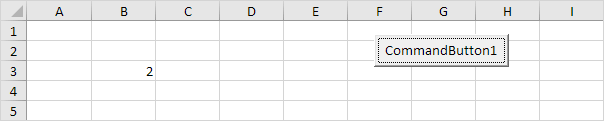
Excel VBA enters the value 2 into the cell at the intersection of row 3 and column 2.
Code:
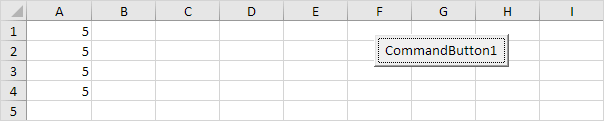
Range(Cells(1, 1), Cells(4, 1)).Value = 5
Result:
Declare a Range Object
You can declare a Range object by using the keywords Dim and Set.
Code:
Dim example As Range
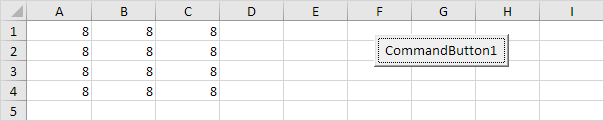
Set example = Range(“A1:C4”)
example.Value = 8
Result:
Select
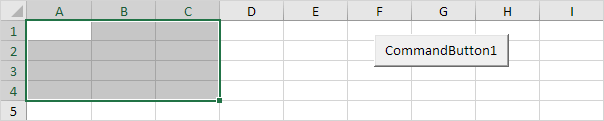
An important method of the Range object is the Select method. The Select method simply selects a range.
Code:
Dim example As Range
Set example = Range(“A1:C4”)
example.Select
Result:
Rows
The Rows property gives access to a specific row of a range.
Code:
Dim example As Range
Set example = Range(“A1:C4”)
example.Rows(3).Select
Result:
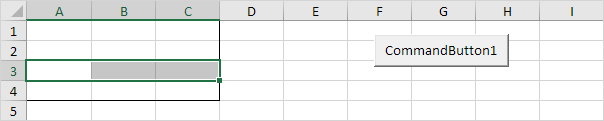
Note: border for illustration only.
Columns
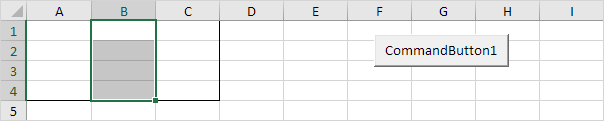
The Columns property gives access to a specific column of a range.
Code:
Dim example As Range
Set example = Range(“A1:C4”)
example.Columns(2).Select
Result:
Copy/Paste
The Copy and Paste method are used to copy a range and to paste it somewhere else on the worksheet.
Code:
Range(“A1:A2”).Select
Selection.Copy
Range(“C3”).Select
ActiveSheet.Paste
Result:
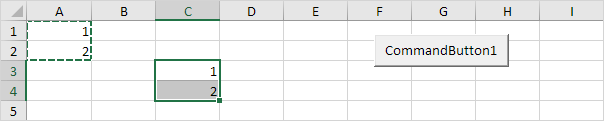
Although this is allowed in Excel VBA. It is better to use the code line like below which does exactly the same and similar to formulas.
Range(“C3:C4”).Value = Range(“A1:A2”).Value
Clear
To clear content of an Excel range, we can use the ClearContents method.
Range(“A1”).ClearContents
or simply use:
Range(“A1”).Value = “”
Use the Clear method to clear the content and format of a range. Use the ClearFormats method to clear the formatting only.
Format
To format of an Excel range, we can use the ClearFormats method.
Range(“A1”).ClearFormats
Count
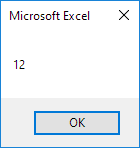
With the Count property, you can count the number of cells, rows and columns of a range.
Code:
Dim example As Range
Set example = Range(“A1:C4”)
MsgBox example.Count
Result:
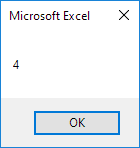
Code:
Dim example As Range
Set example = Range(“A1:C4”)
MsgBox example.Rows.Count
Result:
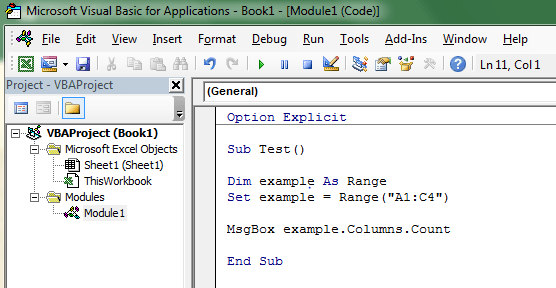
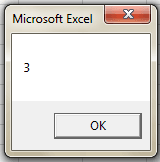
In a similar way, you can count the number of columns of a range.
Dim example As Range
Set example = Range(“A1:C4”)
MsgBox example.Columns.Count
Stuck on a step? Ask a question and the AI answers using this article.