Union and Intersect
The Union method in Excel VBA returns a Range object that represents the union of two or more ranges (borders below for illustration only).
Code line:
Union(Range(“B2:C7”), Range(“C6:F8”)).Select
Result:
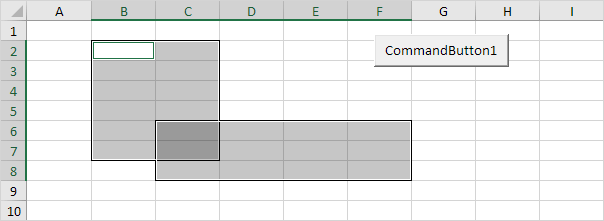
The Union method doesn’t return the mathematical union (cell C6 and cell C7 are included twice).
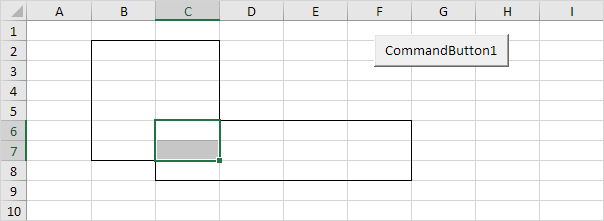
The Intersect method in Excel VBA returns a Range object that represents the intersection of two or more ranges (borders below for illustration only).
Code line:
Intersect(Range(“B2:C7”), Range(“C6:F8”)).Select
Result:
Test a Selection
This program in Excel VBA uses the Count property, IsNumeric function, IsEmpty function and Intersect method to test a selection.
Situation:
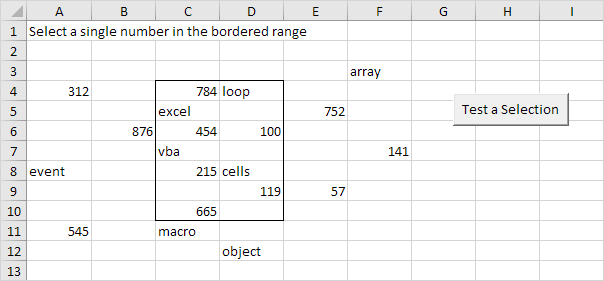
Place a command button on your worksheet and add the following code lines:
1. First, we declare two Range objects. We call the Range objects rng and cell.
2. We initialize the Range object rng with Range(“C4:D10”) and the Range object cell with the selected range.
Set cell = Selection
3. Add the following code lines:
MsgBox “You win”
Else
MsgBox “You lose”
End If
Explanation: Intersect(rng, cell) returns a Range object that represents the intersection of the two ranges. If this range object is not Nothing, the single number (first three conditions) is in the bordered range.
4. Test the program.
Only when you select a single number in the bordered range the result will be:
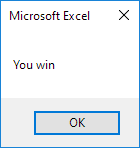
In all other cases the result will be:
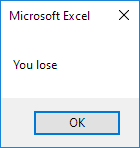
Possible Football Matches
Below we will look at a program in Excel VBA that shows a print preview of all the possible football matches from a list of teams.
Situation:
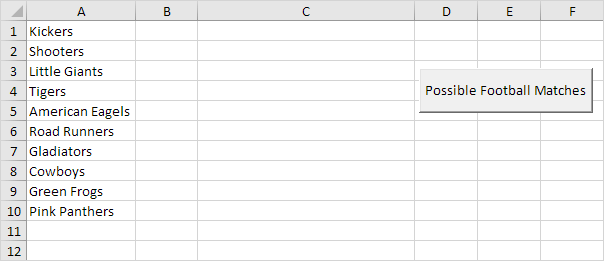
1. First, we declare one Range object and four variables. We call the Range object rng. One String variable we call matchname, and three Integer variables we call counter, i and j.
Dim rng As Range, matchname As String, counter As Integer, i As Integer, j As Integer
2. We initialize rng with the team names. We use CurrentRegion because we don’t know the exact boundaries of the range in advance (we want this program to work for 3 teams but also for 12 teams). We initialize counter with value 0.
Set rng = Range(“A1”).CurrentRegion
counter = 0
3. We write all the possible football matches to column C. First, we empty column C.
Worksheets(1).Columns(3) = “”
4. We start a Double Loop.
For i = 1 To rng.Count
For j = i + 1 To rng.Count
5. We write a matchname to the variable matchname.
matchname = rng.Cells(i).Value & ” vs ” & rng.Cells(j).Value
For example, for i = 1 and j = 2, Excel VBA writes the matchname Kickers vs Shooters. For i = 1 and j = 3, Excel VBA writes the matchname Kickers vs Little Giants, etc.
6. We write the matchname to column C.
Cells(counter + 1, 3).Value = matchname
7. The counter keeps track of the number of matchnames written to column C. Excel VBA increments counter by 1 each time it writes a matchname to column C. To achieve this, add the following code line:
counter = counter + 1
8. Don’t forget to close the two loops.
Next j
Next i
9. We show a print preview of all the possible football matches.
ActiveSheet.Columns(3).PrintPreview
10. Test the program.
Part of the result:
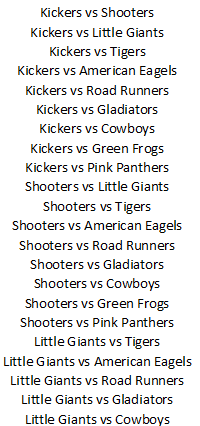
Column C is manually centered to get this result.
Test formulas dynamically in our web formula laboratory or download the companion Excel workbook.
Stuck on a step? Ask a question and the AI answers using this article.