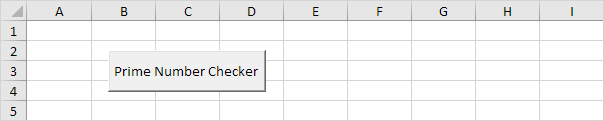
Prime Number
Below we will look at a program in Excel VBA that checks whether a number is a prime number or not. In mathematics a prime number is a number that has exactly two distinct number divisors: 1 and itself. The smallest twenty-five prime numbers are: 2, 3, 5, 7, 11, 13, 17, 19, 23, 29, 31, 37, 41, 43, 47, 53, 59, 61, 67, 71, 73, 79, 83, 89 and 97. For example, 8 has 1, 2, 4 and 8 as divisors and is not a prime number.
In this article
Situation:
We will declare three variables, One Integer variable we call divisors, one Long variable we call number and one Long variable we call i. We use Long variables here because Long variables have larger capacity than Integer variables.
Dim divisors As Integer, number As Long, i As Long
We initialise two variables. We initialise the variable divisors with value 0. We use the InputBox function to get a number from the user.
divisors = 0
number = InputBox(“Enter a number”)
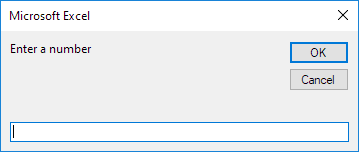
After the user has entered a number, we want to check whether this number is a prime number or not. Remember, a prime number has exactly two distinct number divisors: 1 and itself.
We start a For Next loop.
For i = 1 To number
Now comes the most important part of the program. To calculate the number of divisors of a number, we use the Mod operator. The Mod operator gives the remainder of a division. So 7 mod 2 would give 1. 7 is divided by 2 (3 times) to give a remainder of 1. Only if “number mod i’ equals 0, i is a divisor of number. In this case we want to increment the variable divisors by 1. The macro below does the trick.
If number Mod i = 0 Then
divisors = divisors + 1
End If
VBA checks this for i = 1, i = 2, i = 3, i = 4 until i = number. Note that i = 1 and i = number always are divisors of number. Only if these numbers are the only divisors of number, the number is a prime number.
Don’t forget to close the loop.
Next i
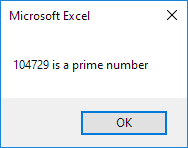
If divisors equals 2, we display a msgbox saying that the entered number is a prime number. If the number of divisors is higher than 2, we display a msgbox saying that the entered number is not a prime number.
If divisors = 2 Then
MsgBox number & ” is a prime number”
Else
MsgBox number & ” is not a prime number”
End If
7. Test the program.
Result for 104729:
Practical VBA workshop
Goal: test prime numbers efficiently and explain why the square-root limit is sufficient.
A learning exercise validates identifiers that must be prime, while demonstrating early exits and loop optimization.
What you will build
- A complete procedure that works without Select or Activate.
- Test data and expected behaviour you can verify before using real files.
- Error cases and production checks that prevent silent damage.
Complete VBA example
Option Explicit
Public Function IsPrime(ByVal n As Long) As Boolean
    Dim divisor As Long
    If n < 2 Then Exit Function
    If n = 2 Then IsPrime = True: Exit Function
    If n Mod 2 = 0 Then Exit Function
    divisor = 3
    Do While divisor <= Sqr(n)
        If n Mod divisor = 0 Then Exit Function
        divisor = divisor + 2
    Loop
    IsPrime = True
End Function
How the solution works
- Numbers below two are not prime; handle that boundary before entering the loop.
- After testing two, only odd divisors need to be checked.
- If n has a factor larger than its square root, the paired factor is smaller than the square root and would already have been found.
Run it step by step
- Download and unzip the practice pack below. Open the matching CSV or copy it into a new macro-enabled workbook.
- Press Alt + F11, choose File → Import File, and import this chapter’s
.basmodule. - Rename the sample worksheet to the name used in the code, or change the worksheet name in one clearly marked line.
- Run the procedure with F5. Compare the result with the expected values and boundary cases in the CSV.
- Undo is not available after a macro changes a workbook. Test on a copy, save only after checking totals, and keep the original source file.
Common mistakes
- Looping from 2 to n-1 works but becomes unnecessarily slow as values grow.
- Treating one as prime is a common mathematical error.
- Long overflows above roughly 2.1 billion; use LongLong only in supported 64-bit VBA and still validate the input.
Make it production-ready
Add Option Explicit, qualify every workbook and worksheet, validate the last row and input types, and use a single cleanup section to restore ScreenUpdating, EnableEvents and calculation settings after an error. Avoid hard-coded regulatory rates or colour-only business rules. Record the source, effective date and assumptions in a visible Notes sheet.
Practice challenge
Read integers from column A, write TRUE or FALSE in column B, and record the smallest divisor for composite numbers in column C.
Test normal data, blanks, text in numeric columns, duplicate values and the exact threshold boundaries. A useful macro should fail clearly rather than produce a plausible but wrong answer.
Download the practice pack
Download VBA Chapters 13–23 practice pack (.zip)
The pack contains an importable VBA module and UTF-8 CSV test data for every chapter. Review code before enabling macros.
Test formulas dynamically in our web formula laboratory or download the companion Excel workbook.
Stuck on a step? Ask a question and the AI answers using this article.