Logical Operators
The three most used logical operators in Excel VBA are And, Or and Not. As always, we will use easy examples to make things more clear.
In this article
Logical Operator And
Place a command button on your worksheet and add the following code lines:
Dim score1 As Integer, score2 As Integer, result As String
score1 = Range(“A1”).Value
score2 = Range(“B1”).Value
If score1 >= 60 And score2 > 1 Then
result = “pass”
Else
result = “fail”
End If
Range(“C1”).Value = result
If score1 is greater than or equal to 60 and score2 is greater than 1, Excel VBA returns pass, else Excel VBA returns fail.
Result when you click the command button on the sheet:
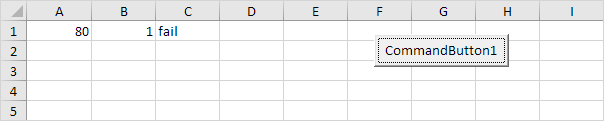
VBA returns fail because score2 is not greater than 1.
Logical Operator Or
Place a command button on your worksheet and add the following code lines:
Dim score1 As Integer, score2 As Integer, result As String
score1 = Range(“A1”).Value
score2 = Range(“B1”).Value
If score1 >= 60 Or score2 > 1 Then
result = “pass”
Else
result = “fail”
End If
Range(“C1”).Value = result
If score1 is greater than or equal to 60 or score2 is greater than 1, Excel VBA returns pass, else Excel VBA returns fail.
Result when you click the command button on the sheet:
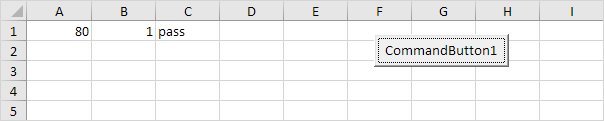
VBA returns pass because score1 is greater than or equal to 60.
Logical Operator Not
Place a command button on your worksheet and add the following code lines:
Dim score1 As Integer, score2 As Integer, result As String
score1 = Range(“A1”).Value
score2 = Range(“B1”).Value
If score1 >= 60 And Not score2 = 1 Then
result = “pass”
Else
result = “fail”
End If
Range(“C1”).Value = result
If score1 is greater than or equal to 60 and score2 is not equal to 1, Excel VBA returns pass, else Excel VBA returns fail.
Result when you click the command button on the sheet:
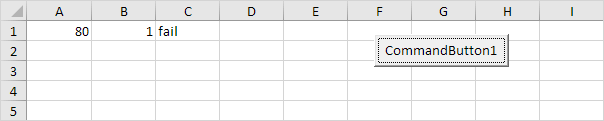
VBA returns fail because score2 is equal to 1.
Practical VBA workshop
Goal: combine multiple tests with And, Or and Not without creating hidden logic errors.
A transaction is ready to post only when it is approved, has a valid account and is not blocked; urgent items may follow a separate review route.
What you will build
- A complete procedure that works without Select or Activate.
- Test data and expected behaviour you can verify before using real files.
- Error cases and production checks that prevent silent damage.
Complete VBA example
Option Explicit
Public Function PostingStatus(ByVal approved As Boolean, ByVal accountOK As Boolean, ByVal blocked As Boolean, ByVal urgent As Boolean) As String
    If blocked Then
        PostingStatus = "Blocked"
    ElseIf approved And accountOK Then
        PostingStatus = "Ready to post"
    ElseIf urgent And (Not approved Or Not accountOK) Then
        PostingStatus = "Urgent review"
    Else
        PostingStatus = "Pending"
    End If
End Function
How the solution works
- Use parentheses even when precedence would produce the same result; they document the rule for the next maintainer.
- VBA evaluates both sides of And and Or. It does not short-circuit, so never put a risky array or object access on the second side expecting the first test to protect it.
- Name Boolean variables positively—accountOK is easier to reason about than accountNotInvalid.
Run it step by step
- Download and unzip the practice pack below. Open the matching CSV or copy it into a new macro-enabled workbook.
- Press Alt + F11, choose File → Import File, and import this chapter’s
.basmodule. - Rename the sample worksheet to the name used in the code, or change the worksheet name in one clearly marked line.
- Run the procedure with F5. Compare the result with the expected values and boundary cases in the CSV.
- Undo is not available after a macro changes a workbook. Test on a copy, save only after checking totals, and keep the original source file.
Common mistakes
- Mixing And and Or without parentheses changes meaning and is difficult to review.
- Using bitwise-looking numeric flags instead of Boolean values hides invalid states.
- Negating a long expression with Not often creates double negatives; extract it into a clearly named variable.
Make it production-ready
Add Option Explicit, qualify every workbook and worksheet, validate the last row and input types, and use a single cleanup section to restore ScreenUpdating, EnableEvents and calculation settings after an error. Avoid hard-coded regulatory rates or colour-only business rules. Record the source, effective date and assumptions in a visible Notes sheet.
Practice challenge
Create a truth table for all 16 combinations and compare it with the function output in the Immediate window.
Test normal data, blanks, text in numeric columns, duplicate values and the exact threshold boundaries. A useful macro should fail clearly rather than produce a plausible but wrong answer.
Download the practice pack
Download VBA Chapters 13–23 practice pack (.zip)
The pack contains an importable VBA module and UTF-8 CSV test data for every chapter. Review code before enabling macros.
Test formulas dynamically in our web formula laboratory or download the companion Excel workbook.
Stuck on a step? Ask a question and the AI answers using this article.