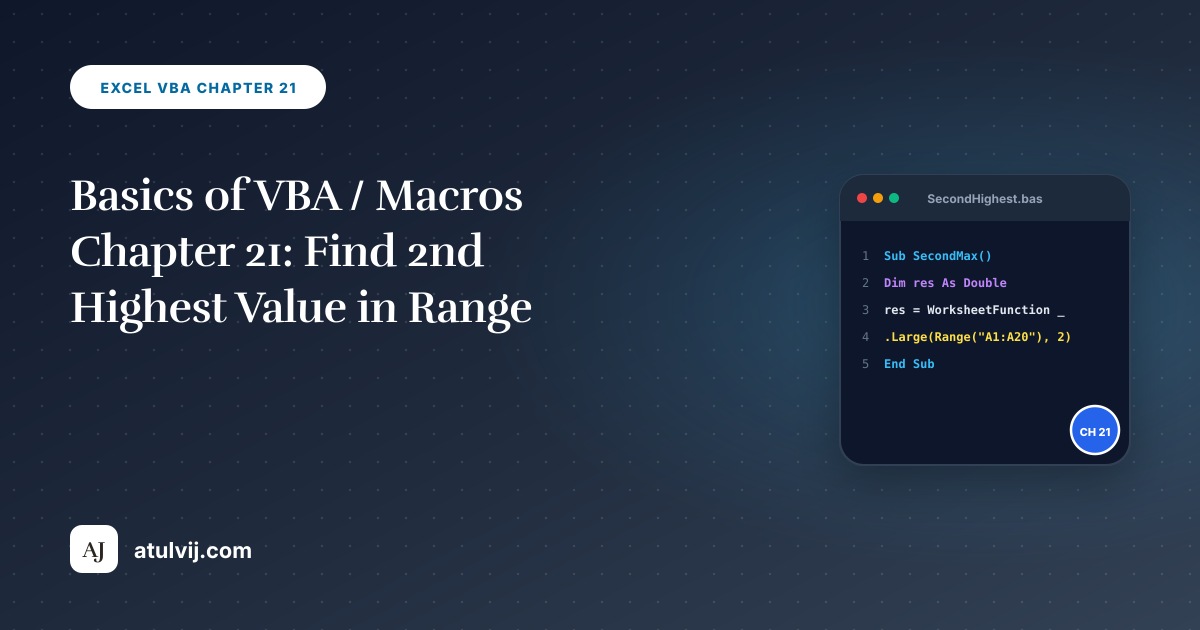
Second Highest Value
Below we will look at a program in Excel VBA that finds the second highest value.
In this article
Situation:
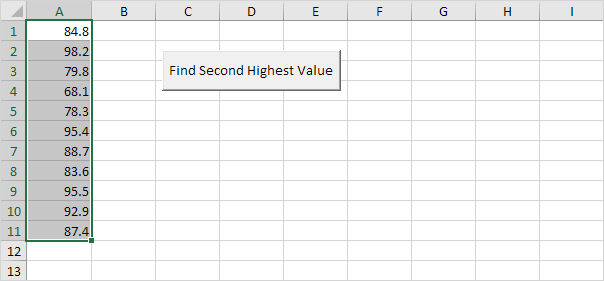
W will declare two Range objects and two variables of type Double. We call the Range objects rng and cell. One double variable we call highestValue, and one double variable we call secondHighestValue.
Dim rng As Range, cell As Range
Dim highestValue As Double, secondHighestValue As Double
We will initialise the Range object rng with the selected range and the two Double variables with value 0.
Set rng = Selection
highestValue = 0
secondHighestValue = 0
We want to find the highest value. We want to check each cell in a randomly selected range (this range can be of any size). In Excel VBA, you can use the For Each Next loop for this. Add the following code lines:
‘Find Highest Value
For Each cell In rng
Next cell
rng and cell are randomly chosen here, you can use any names. Remember to refer to these names in the rest of your code. The green line is a comment and is only added here to provide information about this piece of code.
We check each cell in this range. If it’s higher than highestValue, we write the value to the variable highestValue. Add the following code line to the loop.
If cell.Value > highestValue Then highestValue = cell.Value
The first value is always higher than highestValue because the starting value of highestValue is 0. Second, we want to find the second highest Value. We add another For Each Next loop.
‘Find Second Highest Value
For Each cell In rng
Next cell
We will check each cell in the selected range again. If it’s higher than secondHighestValue and lower than highestValue, we write the value to the variable secondHighestValue. Add the following code line to the loop.
If cell.Value > secondHighestValue And cell.Value < highestValue Then secondHighestValue = cell.Value
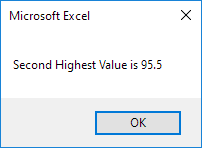
It will display the second highest value using a MsgBox.
MsgBox “Second Highest Value is ” & secondHighestValue
Place your macro in a command button, select the numbers, and click on the command button.
Result:
Practical VBA workshop
Goal: find the second-highest distinct value and define what should happen with duplicates.
A performance list contains tied results. Management needs the second distinct value, not simply the second row after sorting.
What you will build
- A complete procedure that works without Select or Activate.
- Test data and expected behaviour you can verify before using real files.
- Error cases and production checks that prevent silent damage.
Complete VBA example
Option Explicit
Public Function SecondDistinctHighest(ByVal rng As Range) As Variant
    Dim cell As Range, highest As Double, second As Double
    Dim haveHigh As Boolean, haveSecond As Boolean, value As Double
    For Each cell In rng.Cells
        If IsNumeric(cell.Value2) And Len(cell.Value2) > 0 Then
            value = CDbl(cell.Value2)
            If Not haveHigh Or value > highest Then
                If haveHigh Then second = highest: haveSecond = True
                highest = value: haveHigh = True
            ElseIf value < highest And (Not haveSecond Or value > second) Then
                second = value: haveSecond = True
            End If
        End If
    Next cell
    If haveSecond Then SecondDistinctHighest = second Else SecondDistinctHighest = CVErr(xlErrNA)
End Function
How the solution works
- Define whether duplicate top values count before choosing LARGE(range,2) or a distinct-value algorithm.
- The two running values avoid sorting the worksheet and work in one pass.
- Return #N/A when no second distinct value exists so the missing case remains visible.
Run it step by step
- Download and unzip the practice pack below. Open the matching CSV or copy it into a new macro-enabled workbook.
- Press Alt + F11, choose File → Import File, and import this chapter’s
.basmodule. - Rename the sample worksheet to the name used in the code, or change the worksheet name in one clearly marked line.
- Run the procedure with F5. Compare the result with the expected values and boundary cases in the CSV.
- Undo is not available after a macro changes a workbook. Test on a copy, save only after checking totals, and keep the original source file.
Common mistakes
- Initializing highest to zero fails when every valid value is negative.
- Ignoring blanks but not text errors can produce type mismatches.
- Changing cell order just to calculate a rank disrupts the user’s data and filters.
Make it production-ready
Add Option Explicit, qualify every workbook and worksheet, validate the last row and input types, and use a single cleanup section to restore ScreenUpdating, EnableEvents and calculation settings after an error. Avoid hard-coded regulatory rates or colour-only business rules. Record the source, effective date and assumptions in a visible Notes sheet.
Practice challenge
Extend the function to return the employee name associated with the second distinct value and decide how ties should be reported.
Test normal data, blanks, text in numeric columns, duplicate values and the exact threshold boundaries. A useful macro should fail clearly rather than produce a plausible but wrong answer.
Download the practice pack
Download VBA Chapters 13–23 practice pack (.zip)
The pack contains an importable VBA module and UTF-8 CSV test data for every chapter. Review code before enabling macros.
Test formulas dynamically in our web formula laboratory or download the companion Excel workbook.
Stuck on a step? Ask a question and the AI answers using this article.