
Resize
The Resize property in Excel VBA makes a range (border below for illustration only) a specific number of rows and columns larger or smaller. The Resize property always takes the top left cell of a range as the starting point.
Code line:
Range(“A1:C4”).Resize(3, 2).Select
Result:
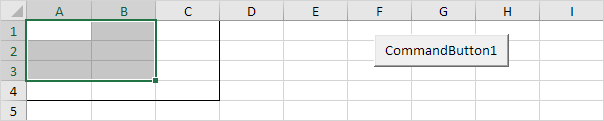
This code line resizes Range(“A1:C4”) to 3 rows and 2 columns and selects this range.
Code line:
Range(“A1:C4”).Resize(, 1).Select
Result:
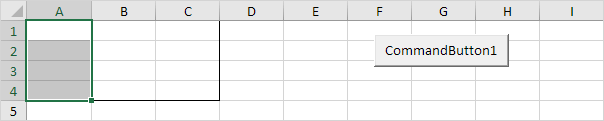
This code line resizes Range(“A1:C4”) to 1 column (we omit any row specification) and selects this range.
Entire Rows and Columns
This example teaches you how to select entire rows and columns in Excel VBA. Place a command button on your worksheet and add the following code lines:
1. The following code line selects the entire sheet.
Cells.Select
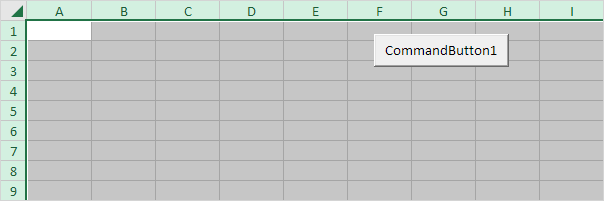
Note: because we placed our command button on the first worksheet, this code line selects the entire first sheet. To select cells on another worksheet, you have to activate this sheet first. For example, the following code lines select the entire second worksheet.
Worksheets(2).Activate
Worksheets(2).Cells.Select
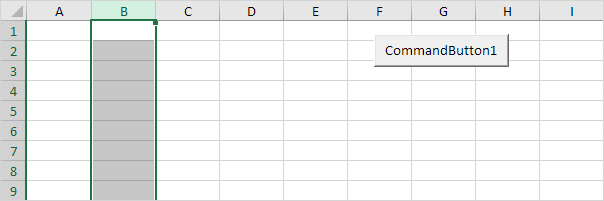
2. The following code line selects the second column.
Columns(2).Select
3. The following code line selects the seventh row.
Rows(7).Select
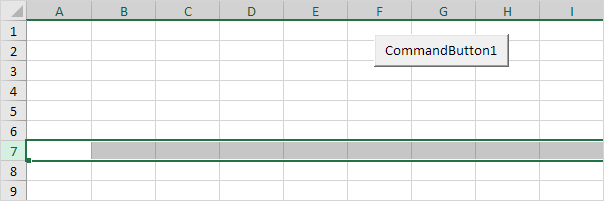
4. To select multiple rows, add a code line like this:
Rows(“5:7”).Select
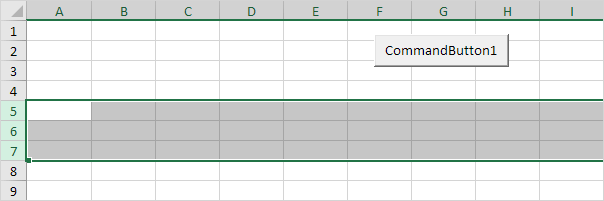
5. To select multiple columns, add a code line like this:
Columns(“B:E”).Select
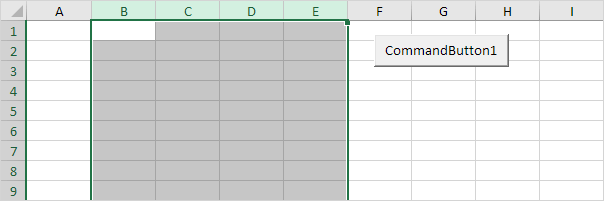
6. Be careful not to mix up the Rows and Columns properties with the Row and Column properties. The Rows and Columns properties return a Range object. The Row and Column properties return a single value.
Code line:
MsgBox Cells(5, 2).Row
Result:

7. Select cell D6. The following code line selects the entire row of the active cell.
ActiveCell.EntireRow.Select
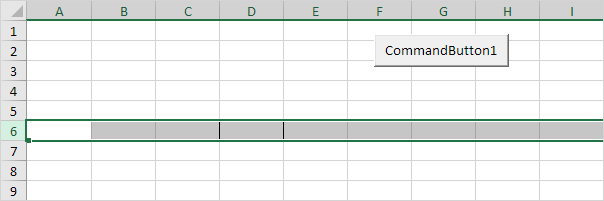
Note: border for illustration only.
8. Select cell D6. The following code line enters the value 2 into the first cell of the column that contains the active cell.
ActiveCell.EntireColumn.Cells(1).Value = 2
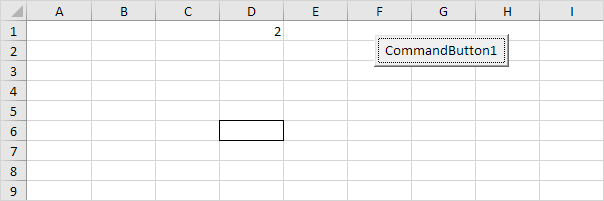
Note: border for illustration only.
9. Select cell D6. The following code line enters the value 3 into the first cell of the row below the row that contains the active cell.
ActiveCell.EntireRow.Offset(1, 0).Cells(1).Value = 3
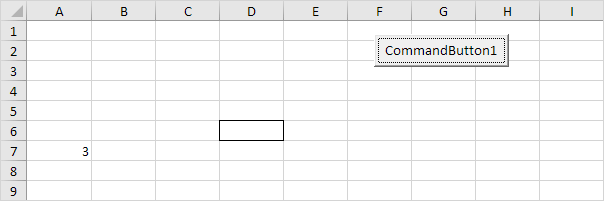
Note: border for illustration only.
Stuck on a step? Ask a question and the AI answers using this article.