If Else/Then Statement
Use the If Then statement in VBA to execute code lines if a specific condition is met.
In this article
If Then Statement
Place a command button on your worksheet and add the following code lines:
score = Range(“A1”).ValueIf score >= 60 Then result = “pass”
Range(“B1”).Value = result
If score is greater than or equal to 60, Excel VBA returns pass.
Result when you click the command button on the sheet:
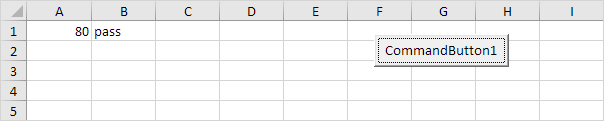
If score is less than 60, Excel VBA places the value of the empty variable result into cell B1.
Else Statement
Place a command button on your worksheet and add the following code lines:
score = Range(“A1”).ValueIf score >= 60 Then
result = “pass”
Else
result = “fail”
End If
Range(“B1”).Value = result
If score is greater than or equal to 60, Excel VBA returns pass, else Excel VBA returns fail.
Result when you click the command button on the sheet:
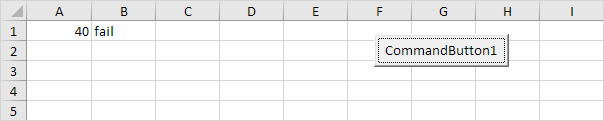
Only if you have one code line after Then and no Else statement, it is allowed to place a code line directly after Then and to omit (leave out) End If (first example). Otherwise start a new line after the words Then and Else and end with End If (second example).
Practical VBA workshop
Goal: use If, ElseIf and Else to turn business rules into readable decisions.
An expense claim should be auto-approved, sent for review or rejected according to amount and documentation.
What you will build
- A complete procedure that works without Select or Activate.
- Test data and expected behaviour you can verify before using real files.
- Error cases and production checks that prevent silent damage.
Complete VBA example
Option Explicit
Public Function ClaimDecision(ByVal amount As Double, ByVal hasReceipt As Boolean) As String
    If amount <= 0 Then
        ClaimDecision = "Reject: invalid amount"
    ElseIf Not hasReceipt Then
        ClaimDecision = "Review: receipt missing"
    ElseIf amount <= 5000 Then
        ClaimDecision = "Auto approve"
    Else
        ClaimDecision = "Manager review"
    End If
End Function

Public Sub TestClaims()
    Debug.Print ClaimDecision(2750, True)
    Debug.Print ClaimDecision(7200, True)
    Debug.Print ClaimDecision(1200, False)
End Sub
How the solution works
- Put invalid or exceptional cases first so the normal path remains easy to read.
- ElseIf branches are evaluated from top to bottom; the first true branch wins.
- A Function is easier to test than code embedded in a button click because inputs and output are explicit.
Run it step by step
- Download and unzip the practice pack below. Open the matching CSV or copy it into a new macro-enabled workbook.
- Press Alt + F11, choose File → Import File, and import this chapter’s
.basmodule. - Rename the sample worksheet to the name used in the code, or change the worksheet name in one clearly marked line.
- Run the procedure with F5. Compare the result with the expected values and boundary cases in the CSV.
- Undo is not available after a macro changes a workbook. Test on a copy, save only after checking totals, and keep the original source file.
Common mistakes
- Using separate If blocks when only one outcome is allowed can assign several conflicting results.
- Comparing text without normalization leads to failures caused by case or trailing spaces.
- Deeply nested If statements are a sign that Select Case or smaller functions may be clearer.
Make it production-ready
Add Option Explicit, qualify every workbook and worksheet, validate the last row and input types, and use a single cleanup section to restore ScreenUpdating, EnableEvents and calculation settings after an error. Avoid hard-coded regulatory rates or colour-only business rules. Record the source, effective date and assumptions in a visible Notes sheet.
Practice challenge
Add a rule that claims above ₹25,000 require both a receipt and a finance review, then test every boundary value.
Test normal data, blanks, text in numeric columns, duplicate values and the exact threshold boundaries. A useful macro should fail clearly rather than produce a plausible but wrong answer.
Download the practice pack
Download VBA Chapters 13–23 practice pack (.zip)
The pack contains an importable VBA module and UTF-8 CSV test data for every chapter. Review code before enabling macros.
Test formulas dynamically in our web formula laboratory or download the companion Excel workbook.
Stuck on a step? Ask a question and the AI answers using this article.